Snow Day Calculator Not Working? Try These Step-by-Step Fixes
A winter storm is approaching, you need to plan childcare and the calculator shows a blank screen, endless spinner or location error. Repeatedly pressing the prediction button usually does not identify the real problem. The failure could involve the browser, connection, location settings, unsupported search term or the service itself.
If the Snow Day Calculator Not Working message describes your situation, start with the symptom instead of deleting everything from your browser. Most checks take less than a few minutes, and several preserve your saved logins and browsing data.
This guide covers loading failures, location problems, missing results and outdated percentages in a safe order. It also explains where to find official information if SnowPredictor remains unavailable.
Snow Day Calculator Not Working: Quick Diagnosis Table
Match what you see with the most likely category before trying a fix.
| Symptom | Possible Cause | First Action |
|---|---|---|
| Page will not open | Connection, DNS or temporary server issue | Test another website and connection |
| Blank calculator area | Blocked or failed script | Reload, then test a private window |
| Spinner never ends | Weather request timed out | Switch connection and retry once |
| Location permission denied | Browser or device privacy setting | Enter the city manually or allow access |
| City not found | Ambiguous or unsupported location | Add the province or use a nearby supported city |
| Percentage looks old | Cached page or wrong forecast date | Reload and confirm today versus tomorrow |
| Button does nothing | Script blocked by an extension | Pause the blocker for this site |
| Works on one device only | Local browser configuration | Update or reset site-specific settings |
This table does not prove the cause. It gives you the fastest low-risk starting point.
Snow Day Calculator Not Working: Check Your Connection
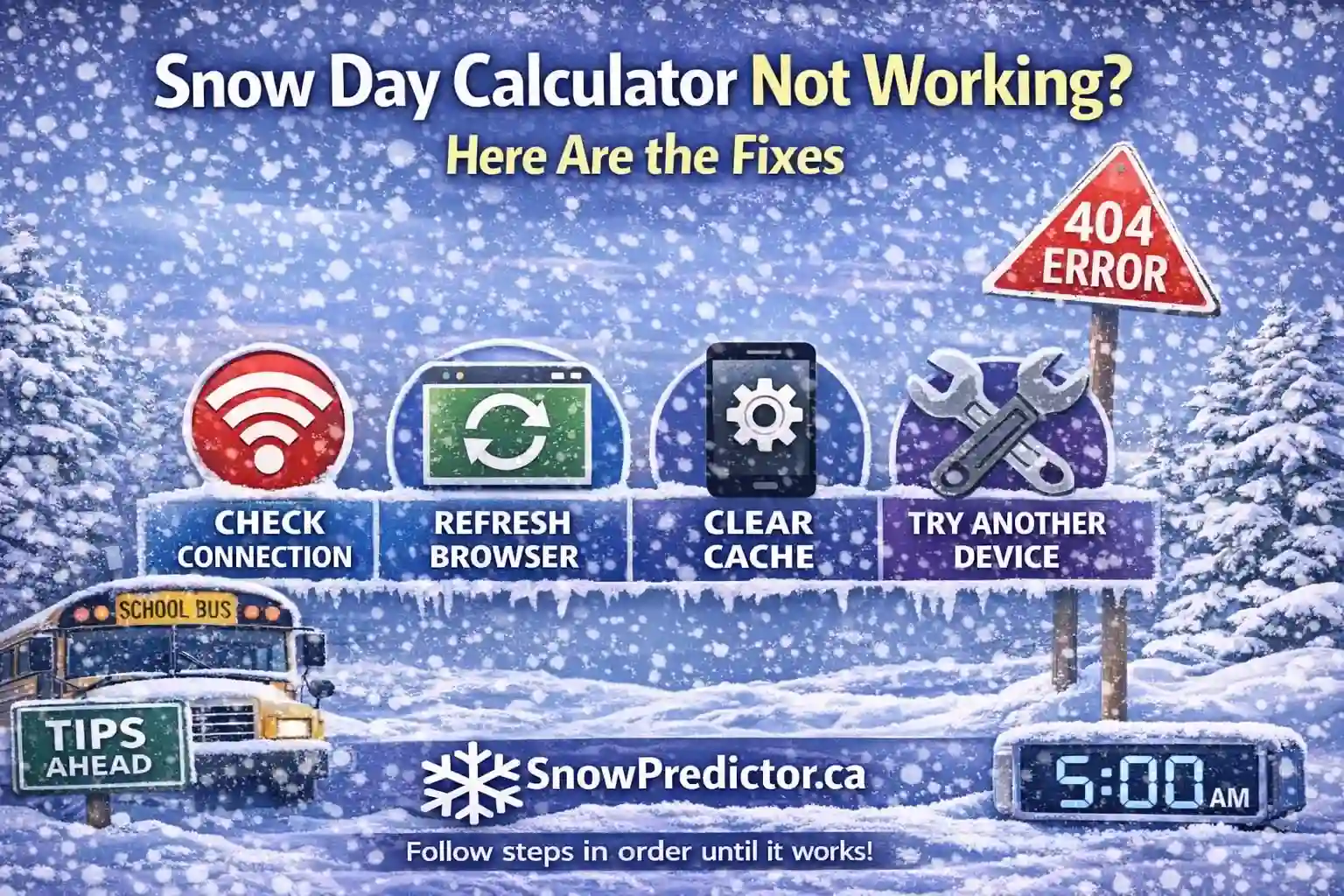
Open another current website. If it also fails or loads slowly, the calculator may not be the problem. Switch between Wi-Fi and mobile data if both are available, then reopen the page.
A weak connection can load the page design but fail when the calculator requests current weather information. This may leave a spinner or generic snow day calculator error.
Avoid repeatedly submitting the same search during an unstable connection. Wait until the connection improves, reload once and try again.
Fix 2: Reload the Current Page
When the Snow Day Calculator Not Working problem begins after the tool previously worked, reload the page before changing any settings.
- Windows browsers: press
Ctrl + R - Mac browsers: press
Command + R - Mobile browsers: use the refresh control or pull down to reload
If a standard refresh returns the same outdated or broken page, try a hard refresh on desktop:
- Windows Chrome, Edge or Firefox:
Ctrl + Shift + R - Mac Chrome or Firefox:
Command + Shift + R - Mac Safari:
Command + Option + R
A hard refresh asks the browser to retrieve current page resources instead of relying entirely on saved copies. Keyboard behaviour can vary by browser version, so use the browser’s reload menu if the shortcut does not work.
Fix 3: Check the Location You Entered
A snow day calculator location not found message is not necessarily a technical failure. The search may not recognize a small community, duplicated city name, neighbourhood, school name or misspelling.
Try these steps:
- Enter the official city or municipality name.
- Add the province, such as “Richmond, British Columbia.”
- Remove school names, street addresses and extra punctuation.
- Test the nearest supported municipality within the same weather area.
- Confirm that the chosen location represents the correct school authority.
Do not automatically use a distant major city. Lake-effect snow, elevation, coastal exposure and rural routes can create different conditions nearby. The Canadian microclimate guide explains why location substitution can change the meaning of a result.
Fix 4: Review Browser Location Permission
The “Use My Location” feature requires permission from both the browser and device. If access was denied earlier, tapping the button again may not trigger a new request.
To allow browser location permission, open the site information or privacy control beside the address bar, find Location and change the setting to Allow. Reload the page afterwards. On a phone, you may also need to enable location services for the browser through the device’s privacy settings.
Use precise location only if you are comfortable sharing it with the site. Manual city entry is a reasonable alternative and is often sufficient for a city-level prediction.
Location controls vary across Chrome, Safari, Firefox, Edge, Android and iOS. If you cannot find the option, search the browser’s official support instructions for your current version.
Fix 5: Test a Private or Incognito Window
A private window creates a cleaner test without immediately deleting browser data. Open SnowPredictor in private or incognito mode and repeat the same city search.
If the tool works there, the original problem may involve saved site data, cookies or an extension. If it fails in both modes, the cause is more likely the connection, unsupported location or service.
Private browsing does not make you anonymous to every website or network provider. Here, it is simply a troubleshooting method.
Fix 6: Temporarily Pause Content Blockers
Ad blockers, privacy tools, script blockers, antivirus web shields and strict browser protection can prevent an interactive calculator from loading required resources. This can produce a snow day calculator blank screen or a button that does nothing.
Pause the relevant extension only for SnowPredictor, reload the page and test again. If the calculator still fails, turn the protection back on. Do not disable security software across every website or permanently weaken browser protection for one troubleshooting test.
If the tool begins working, add only the smallest site-specific exception needed. Users who prefer not to change their blocker can try another browser with its default settings.
Fix 7: Clear Site-Specific Cached Data
If a private window works but the normal browser does not, old cached files may be involved. Use the browser’s site controls to clear browser cache and cookies for snowpredictor.ca specifically, then reload.
Do not begin by clearing all history, cookies and saved data. A browser-wide deletion can sign you out of unrelated accounts, remove preferences and erase useful offline files. Site-specific clearing is the more controlled option.
Menu names vary, but common paths include “Site settings,” “Cookies and site data,” “Manage website data” or the padlock/settings icon beside the address bar.
Fix 8: Update or Try Another Browser
An outdated browser may not support current scripts or security requirements. Install available browser and operating-system updates, restart the browser and test again.
If the snow day predictor not working issue continues, try one alternative browser. A successful test does not prove one brand is universally better; it shows that the first browser has a local configuration or compatibility problem.
Test the same location and forecast date on both browsers. Changing several variables at once makes the result harder to interpret.
Fix 9: Turn Off a VPN or Custom DNS Temporarily
A VPN, corporate network, parental-control filter or custom DNS service can block or reroute requests needed by a weather tool. Temporarily disconnect it, return to a standard trusted connection and test the page.
Only perform this step if doing so is safe and permitted on your device or workplace network. Re-enable your privacy or network service after the test. If SnowPredictor works without it, review that service’s block log or allowlist rather than leaving protection disabled.
Fix 10: Confirm the Forecast Date and Meaning
Sometimes users report SnowPredictor not working when the tool is displaying a valid result for a different date. A low “today” percentage can appear confusing while snow is falling if the intended question concerns tomorrow’s school day.
Check the location, local date and forecast label. Then review the guide to snow day today versus tomorrow before assuming the displayed number is technically wrong.
An updated percentage can also move as the forecast changes. That behaviour is different from a failed calculator. The explanation of why snow day scores change covers storm timing, precipitation type and forecast revisions.
Snow Day Calculator Not Working Error Messages
| Message or Behaviour | What It May Indicate | Best Next Step |
|---|---|---|
| “Something went wrong” | Request or service failure | Reload once, then test later |
| “Location not found” | Search term unsupported or ambiguous | Enter city plus province |
| Permission denied | Location access blocked | Allow access or enter manually |
| No prediction available | Missing location or forecast coverage | Check another supported location and official sources |
| Endless loading | Connection or data request stalled | Change network or test private mode |
| Old-looking result | Cache or wrong date selection | Refresh and verify the date |
A snow day calculator no results response should not be converted into a zero-percent chance. No result means the tool did not return an estimate; it does not mean normal school operations are guaranteed.
Similarly, snow day prediction unavailable is not an official “schools open” message. Treat it as missing planning information.
What to Do During a Temporary Service Problem
If the snow day calculator stuck loading problem occurs across multiple devices and connections, the service itself may be temporarily unavailable. Stop repeating destructive fixes. Wait briefly and try SnowPredictor again later.
While waiting, use dependable alternatives:
- Check Environment Canada forecasts and active alerts.
- Open your school board or division website.
- Check the student transportation authority’s status page.
- Review official email, text or app notifications.
- Use verified local media only as a secondary source.
For school closure information Canada, first-party education and transportation sources carry the decision. A weather service explains the hazard but does not close the school.
When and How to Report the Problem
If the Snow Day Calculator Not Working issue persists, report enough detail for the site owner to reproduce it. Include:
- Device and operating-system version
- Browser name and version
- City or location entered
- Forecast date selected
- Exact message or visible behaviour
- Whether private mode or another connection worked
- Approximate time the problem occurred
- Screenshot without private information
Do not send passwords, precise home coordinates, account details or children’s school records. A useful report describes the technical symptom without exposing personal data.
What Not to Do
When trying to fix snow day calculator problems, avoid these common mistakes:
- Do not treat a missing result as a zero-percent closure chance.
- Do not clear all browser data before testing simpler fixes.
- Do not permanently disable security protections.
- Do not repeatedly reload every second during an outage.
- Do not choose a distant city simply because it returns a result.
- Do not use a calculator result as an official decision.
A snow day calculator Canada tool provides planning guidance. Only a school board, school division, district or transportation authority can publish an official school closure notice.
Frequently Asked Questions
Why Is the Snow Day Calculator Not Working?
Possible causes include an outdated cached page, blocked JavaScript, denied location access, an unsupported search term, weak connectivity or a temporary service problem. Match the symptom to the troubleshooting table before changing settings.
How Do I Fix a Snow Day Calculator Not Loading?
Reload the page, test your connection and open a private window. If necessary, pause content blockers for the site and try another updated browser. Clear site-specific cached data only after simpler steps fail.
Why Can the Calculator Not Find My Location?
The city name may be misspelled, ambiguous or unsupported, or location access may be blocked. Enter the municipality and province manually. Use a nearby location only when it represents the same weather and school-authority area.
Should I Clear My Entire Browser History?
Usually not. Start with a reload or private window. If cached data appears responsible, clear data for SnowPredictor specifically. Removing all browser data can sign you out of unrelated websites and erase saved preferences.
Where Should I Check If the Calculator Remains Unavailable?
Check Environment Canada for weather conditions and alerts. For the final decision, use your school board, school division or student transportation authority. Those sources confirm whether buildings are open, buses are cancelled or specific zones are affected.